Why File Permissions Matter
Every file and directory on a Linux or Unix system carries a set of rules that decide who can read it, who can change it, and who can run it. Those rules are called file permissions, and the chmod command is how you change them.
If you have ever seen a string like drwxr-xr-x in the output of ls -l, or a number like 755 in a tutorial, you have seen file permissions. They look cryptic, but once you understand the system — three users, three permissions, three digits — chmod becomes one of the simplest tools in Linux.
This guide walks through everything: what the symbols mean, how the octal numbers work, which values to actually use in production, which ones to avoid, and how to handle special cases like SSH keys, web directories, and recursive changes.
Quick tool: If you just need a value, use our free Chmod Calculator — click checkboxes for owner, group, and other, and it generates the octal value, symbolic string, and full command instantly.
The Three Permissions: Read, Write, Execute
Linux defines three actions a user can take on a file or directory:
- Read (r) — view the contents of a file, or list the contents of a directory
- Write (w) — modify the file, or create/delete files inside a directory
- Execute (x) — run the file as a program, or enter the directory (cd into it)
These three actions apply slightly differently to files and directories. For a file, "execute" means "run it as a script or binary." For a directory, "execute" means "enter this directory." That is why directories almost always need the execute bit set along with read — without execute, you can see the directory exists but cannot cd into it.
The Three Users: Owner, Group, Others
Every file also belongs to three categories of user:
- Owner (u) — the single user who owns the file (shown by
ls -lin the third column) - Group (g) — the group the file belongs to (shown in the fourth column)
- Others (o) — everyone else on the system
When you run chmod, you are setting the three permissions (r, w, x) for each of the three categories (u, g, o) — so every file has nine permission bits in total.
Reading the Permission String
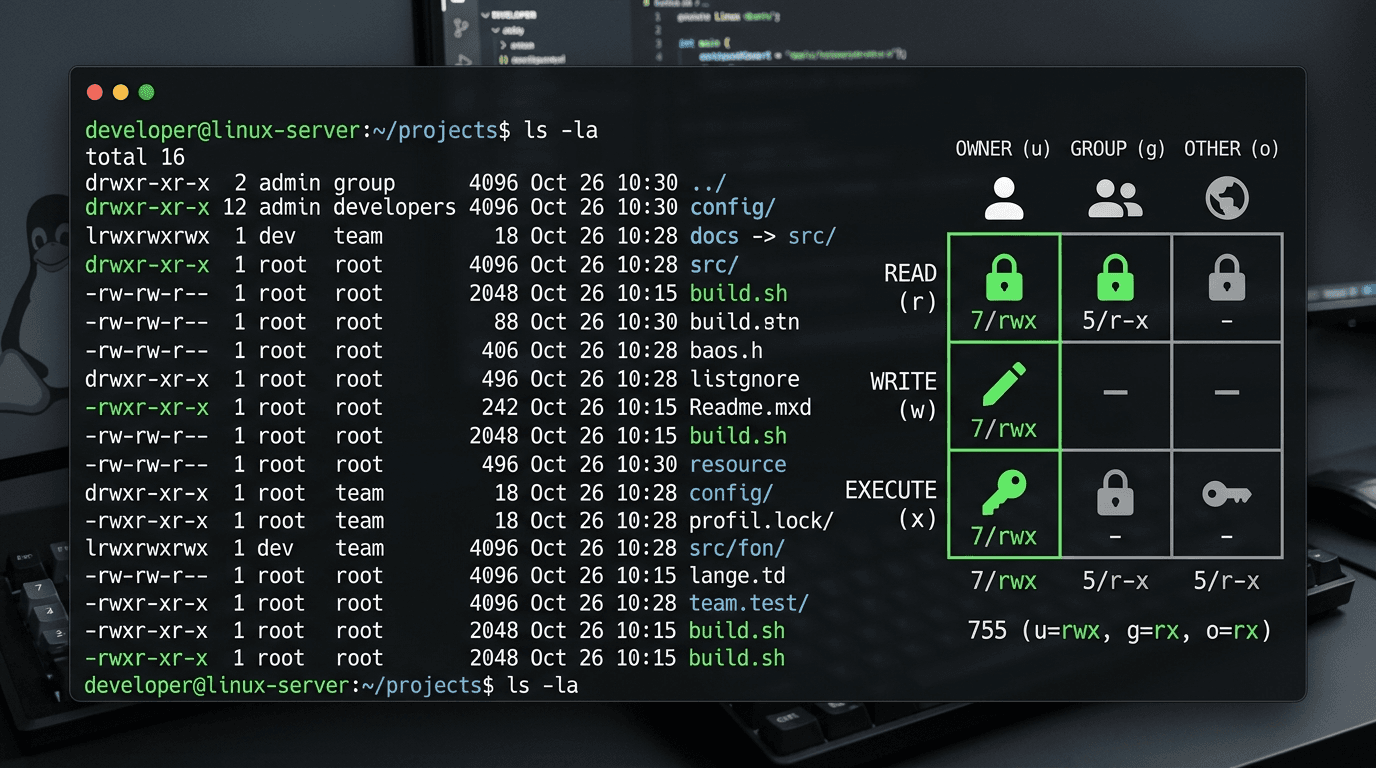
Run ls -l and you will see something like this:
-rwxr-xr-x  1 alice developers  1024 Apr 13 09:30 deploy.sh
drwxr-x---  2 alice developers  4096 Apr 13 09:30 private/
That first column is the permission string. It has 10 characters, broken down as:
| Position | Value | Meaning |
|---|---|---|
| 1 | - or d or l | File type (file, directory, symlink) |
| 2–4 | rwx | Owner permissions |
| 5–7 | r-x | Group permissions |
| 8–10 | r-x | Others permissions |
So -rwxr-xr-x means: it is a regular file, the owner can read/write/execute, the group can read and execute (but not write), and everyone else can read and execute (but not write).
drwxr-x--- means: it is a directory, the owner has full access, the group can read and enter it, and nobody else has any access at all.
Numeric (Octal) Notation: Why chmod Uses Numbers
Typing rwxr-xr-x every time is tedious, so chmod supports a shorter notation using octal numbers. Each permission is a power of two:
- Read = 4
- Write = 2
- Execute = 1
You add them together to get a single digit per user category:
| Digit | Permissions | Symbolic |
|---|---|---|
| 7 | read + write + execute | rwx |
| 6 | read + write | rw- |
| 5 | read + execute | r-x |
| 4 | read only | r-- |
| 3 | write + execute | -wx |
| 2 | write only | -w- |
| 1 | execute only | --x |
| 0 | no permissions | --- |
Then you write three digits for owner, group, and others — in that order. So chmod 755 file means:
- 7 for owner = rwx
- 5 for group = r-x
- 5 for others = r-x
Which is exactly the rwxr-xr-x from earlier.
If the math is annoying, skip it — the Chmod Calculator does it for you.
The Most Common chmod Values (and What They Actually Mean)
Here are the permission values you will actually use in real work:
755 — rwxr-xr-x — Directories and Executables
The default for anything that needs to be readable and runnable by anyone but editable only by the owner. Use it for:
- Web server directories (
/var/www/html/) - Executable scripts (
deploy.sh,install.sh) - Binary files in
/usr/local/bin
chmod 755 deploy.sh644 — rw-r--r-- — Regular Files
The default for data files — readable by everyone, editable only by the owner. Use it for:
- HTML, CSS, JavaScript files on a web server
- Configuration files
- Markdown, text, and image files
chmod 644 index.html777 — rwxrwxrwx — FULL ACCESS (Almost Always Wrong)
Everyone can read, write, and execute. This is the classic "my web app is broken so I will just chmod 777 it" move — and it is almost always a security mistake.
Do not use 777 on a production server. Any user on the system (including web server processes that get compromised) can modify the file. If you think you need 777, you probably need to fix ownership with chown or use a more specific permission like 755 or 664.
700 — rwx------ — Owner-Only Private Directory
Full access for the owner, nothing for anyone else. Use it for:
- Your home directory or subdirectories you do not want other users to peek into
- The
~/.sshdirectory (SSH actually enforces this — if~/.sshis more open than 700, SSH may refuse to use keys inside)
chmod 700 ~/.ssh600 — rw------- — Owner Read/Write, Nothing Else
The standard for sensitive files like API tokens, SSH keys, and config files with secrets.
chmod 600 ~/.ssh/id_rsa
chmod 600 .env
400 — r-------- — Owner Read Only
Even stricter than 600 — the file cannot be modified, even by its owner, without first changing permissions again. Some tools like ssh actually require 400 on private key files and will refuse to use keys that are more open.
chmod 400 ~/.aws/credentials444 — r--r--r-- — Read-Only for Everyone
Everyone can read, nobody can write or execute. Use it for reference files you want to broadcast but protect from edits.
Changing Permissions Recursively with -R
If you need to change the permissions of a directory and everything inside it, use the -R flag:
chmod -R 755 /var/www/htmlBe careful: this applies the same permission to files AND directories. That is usually wrong — you typically want 755 on directories but 644 on files. A safer pattern is to use find:
find /var/www -type d -exec chmod 755 {} \;
find /var/www -type f -exec chmod 644 {} \;
Or use the capital X ("execute only for directories or files that are already executable") trick:
chmod -R u=rwX,go=rX /var/wwwSpecial Permissions: SUID, SGID, and the Sticky Bit
Beyond the three digits, Linux has a fourth "special permission" digit that appears before the usual three. It is rarely needed in day-to-day work, but worth knowing:
- SUID (4) —
chmod 4755 file— the file runs as its owner rather than the user invoking it. Classic example:/usr/bin/passwdis SUID-root so any user can run it but it operates with root privileges to modify/etc/shadow. - SGID (2) —
chmod 2755 file— same idea for the file's group, or on a directory, it makes newly created files inherit the directory's group. - Sticky bit (1) —
chmod 1777 /tmp— on a shared writable directory, only the file's owner (or root) can delete their own files. This is why/tmpis safe for everyone to write to.
For the vast majority of work, leave the special permissions alone unless you specifically need one of these behaviors.
Symbolic chmod: Changing One Bit at a Time
chmod also supports a relative syntax that adds or removes individual permissions without overwriting the others:
chmod +x script.sh          # Add execute for everyone
chmod u+x script.sh         # Add execute for owner only
chmod g-w file.txt          # Remove write for group
chmod o=r file.txt          # Set others to read-only (replacing existing)
chmod a+r file.txt          # Add read for all (equivalent to ugo+r)
The letters: u (user/owner), g (group), o (others), a (all). The operators: + (add), - (remove), = (set exactly). Symbolic mode is great when you only want to tweak one bit — no need to type out the full three-digit octal.
chmod vs chown: Do Not Confuse Them
- chmod changes what can be done with a file (permissions)
- chown changes who owns the file (ownership)
You typically use them together: chown to assign the file to the right user and group, then chmod to set the right permission level. For example, on a web server:
chown -R www-data:www-data /var/www/html
chmod -R 755 /var/www/html
find /var/www/html -type f -exec chmod 644 {} \;
Common Mistakes and Security Pitfalls
1. Using chmod 777 to fix permission errors.
The error message was probably telling you something specific — the web server cannot read a file, a script is not executable, a directory is missing the execute bit. Fix the actual problem (usually with 755 or 644 and correct ownership) instead of opening the file to everyone.
2. Setting 777 on `~/.ssh` or private keys.
SSH will outright refuse to use keys with permissions that are too open. Keep ~/.ssh at 700 and individual key files at 600 or 400.
3. Running chmod recursively on system directories.sudo chmod -R 777 / is the classic Linux-breaking command. Do not experiment with recursive chmod on directories you do not own.
4. Forgetting the execute bit on directories.
If a user can read a directory but not execute it, they can see its contents listed but cannot cd into it or access anything inside. For directories, r and x almost always go together.
5. Using chmod instead of chown.
If a file is owned by the wrong user, making it 777 is a workaround. The correct fix is chown to set the right owner, then chmod to set a sensible permission.
Quick chmod Cheat Sheet
| Value | Symbolic | Use case |
|---|---|---|
| 755 | rwxr-xr-x | Directories, executable scripts |
| 644 | rw-r--r-- | Regular files |
| 700 | rwx------ | Private directories (~/.ssh) |
| 600 | rw------- | SSH keys, .env files |
| 400 | r-------- | Read-only sensitive files |
| 444 | r--r--r-- | Read-only for everyone |
| 775 | rwxrwxr-x | Group-writable directories |
| 664 | rw-rw-r-- | Group-writable files |
| 777 | rwxrwxrwx | Avoid — use only in disposable sandboxes |
Calculate Permissions Without Doing the Math
You should understand the permission system — but you should not have to do octal arithmetic every time. Our free Chmod Calculator gives you a visual grid: click to toggle read, write, and execute for owner, group, and others, and it produces the numeric value (e.g., 755), the symbolic notation (rwxr-xr-x), and the full chmod command (chmod 755 filename) in real time. It also supports the recursive flag and common presets for the permission sets you actually use.
Try our 46+ free developer tools — including Regex Tester, Markdown Table Generator, and DNS Lookup. All 100% client-side, no signup required.